Chapter 3: The Engine Room (Operating Systems)
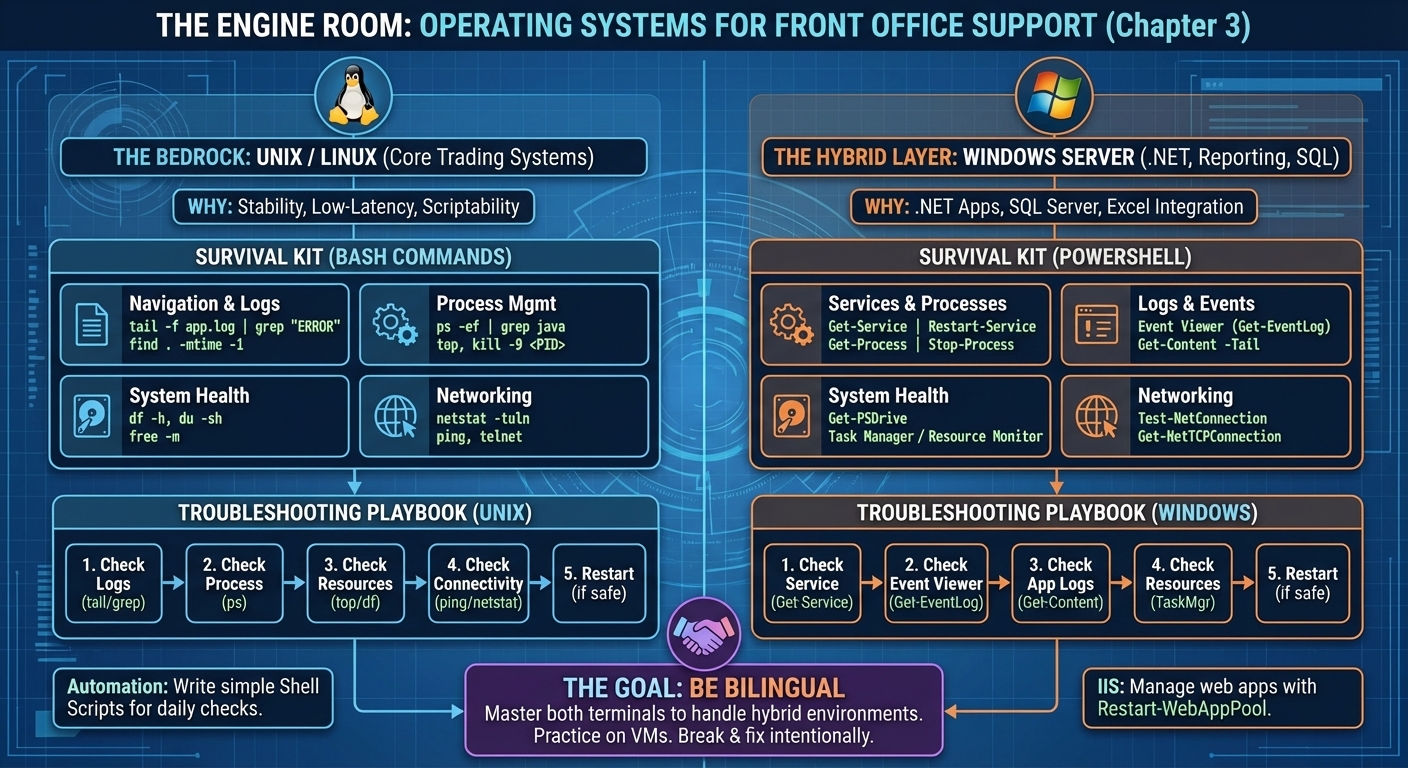
Figure 3: The Engine Room - Unix/Linux as the bedrock for core trading systems, Windows Server for .NET and reporting. Master both terminals to handle hybrid environments.
"If you can't navigate a Unix server, you can't do this job. It's that simple." — Senior Support Analyst, a Swiss bank
Welcome to the bedrock of investment banking infrastructure. While traders see sleek GUIs and real-time charts, everything underneath runs on Unix/Linux servers—and increasingly, Windows Server for .NET applications.
As a Support Analyst, you'll spend more time in terminal windows (Unix) and PowerShell (Windows) than you will in email. You need to be comfortable in both worlds. Not expert-level—you're not a Systems Administrator—but competent enough to diagnose issues, parse logs, and restart processes without breaking production.
This chapter isn't a comprehensive OS manual. It's a survival kit: the commands and techniques I used daily at multiple banks to keep trading systems alive.
Why Unix/Linux?
Investment banks love Unix/Linux for trading systems because: * Stability: These servers run for months (sometimes years) without rebooting. * Performance: Low-latency, high-throughput. Critical when microseconds matter. * Scriptability: Everything can be automated via shell scripts. * Security: Fine-grained permissions and audit trails.
The most common flavors you'll encounter: * Red Hat Enterprise Linux (RHEL): The gold standard. Enterprise support, certified for trading applications. * CentOS: Free RHEL clone. Common in dev/test environments. (Note: CentOS Stream has replaced traditional CentOS as of 2021.) * Solaris: Oracle's Unix. Legacy systems, mostly being phased out. If you encounter it, it's probably a 15-year-old pricing engine that "nobody dares touch." * Ubuntu: Increasingly popular for newer deployments, especially cloud-based systems.
The Survival Commands
These are the commands I used every single day. Master these, and you'll handle 90% of support tasks.
Navigation & File Management
pwd                    # Print working directory (where am I?)
ls -lrt                # List files, sorted by modification time (newest last)
cd /apps/trading       # Change directory
tail -f app.log        # Follow a log file in real-time (your best friend)
grep "ERROR" app.log   # Search for errors in a log file
find . -name "*.log" -mtime -1  # Find all log files modified in last 24 hours
Real-World Use: At a UK bank, when a batch job failed, I'd immediately run:
This let me watch the log in real-time and spot the failure point.Process Management
ps -ef | grep java     # Find all Java processes
top                    # Live view of CPU/memory usage (who's eating resources?)
kill -9 <PID>          # Force-kill a hung process (use sparingly!)
nohup ./start.sh &     # Start a process that survives logout
Real-World Use: At a Swiss bank, a pricing engine would occasionally hang during market open. I'd run:
Traders back online in 2 minutes.Disk & System Health
df -h                  # Disk space (is the disk full?)
du -sh /apps/trading/* # Disk usage by directory (what's eating space?)
free -m                # Memory usage
uptime                 # How long has the server been running?
Real-World Use: A common incident: "The application won't start!" First thing I check:
If/apps is at 100%, I know the issue. Find and delete old logs: Networking
netstat -tuln | grep 8080   # Is port 8080 listening?
ping bloomberg.com          # Can we reach external systems?
telnet 10.0.0.5 1521        # Test connectivity to a database
Real-World Use: At a European bank, traders reported stale prices. I checked connectivity to Bloomberg:
Connection refused. Escalated to Network team. Issue resolved in 10 minutes.File Permissions & Ownership
chmod 755 script.sh    # Make script executable
chown app:app file.txt # Change file owner
ls -l                  # View permissions
Real-World Use: After deploying a new script, it wouldn't run. Checked permissions:
Missing execute permission. Fixed:The Troubleshooting Playbook
When something breaks (and it will), follow this sequence. (For the full incident management protocol, see Chapter 7: Rules of Engagement.)
Step 1: Check the Logs
Look for: *ERROR, EXCEPTION, FATAL * Stack traces * Timestamps around when the issue started Step 2: Check the Process
Is it running? If not, why did it stop?Step 3: Check System Resources
Is the CPU maxed out? Disk full? Out of memory?Step 4: Check Connectivity
Can the app reach the database? The market data feed?Step 5: Restart (If Safe)
Warning: Never restart a production system without: 1. Checking with the traders/business. 2. Having a rollback plan. 3. Documenting the incident in your ticketing system (Jira/ServiceNow).War Story: The Disk Space Incident (a UK bank, 2014)
It was 6:45 AM. Markets were about to open. The Risk & P&L application wouldn't start.
I SSH'd into the server:
Error:No space left on device Checked disk space:
The /apps/risk/logs directory had ballooned to 80GB. Old log files from months ago were never cleaned up.
Quick fix:
Freed 75GB. Restarted the app. Traders had their risk reports by 7:00 AM.
Lesson: Always monitor disk space. Set up automated log rotation (logrotate) to prevent this.
Shell Scripting: Automating the Repetitive
You don't need to be a Bash wizard, but you should be able to write simple scripts to automate checks.
Example: Start-of-Day Health Check
#!/bin/bash
# Daily health check script

echo "=== Disk Space ==="
df -h | grep -E "/$|/apps"

echo "=== Trading App Status ==="
ps -ef | grep trading_app | grep -v grep

echo "=== Last 10 Errors in Log ==="
tail -1000 /apps/trading/logs/app.log | grep ERROR | tail -10

echo "=== Connectivity to Database ==="
nc -zv db-server 1521
Save as health_check.sh, make it executable (chmod 755), and run it every morning:
At a UK bank, I had a similar script that ran at 6:30 AM and emailed the results to the team. Saved us 30 minutes every day.
What You Don't Need to Know (Yet)
As a Support Analyst, you're not expected to: * Configure kernel parameters. * Set up RAID arrays. * Manage user accounts and LDAP integration. * Write complex awk or sed one-liners (nice to have, not essential).
Those are the domain of Systems Administrators and DevOps Engineers. Your job is to keep applications running and troubleshoot when they break.
The Other Half: Windows Server
Here's the truth nobody tells you: Not everything runs on Unix.
Many banks have a hybrid infrastructure. Front-end trading applications, risk systems, and reporting tools often run on Windows Server because they're built in .NET (C#) or integrate with Microsoft SQL Server.
At a UK bank, I supported a Front Office Risk & P&L system that ran on Windows Server 2012. The pricing engine was Unix-based, but the reporting layer was Windows. I had to be fluent in both.
Why Windows in Investment Banks?
- Microsoft SQL Server: Many banks use it for data warehousing and reporting.
- .NET Applications: C# is popular for building trading GUIs and middle-office tools.
- Excel Integration: Traders love Excel. Windows makes it easier to integrate real-time data feeds into spreadsheets.
- Active Directory: Centralized user management across the enterprise.
Windows Server Versions You'll Encounter
- Windows Server 2008 / 2008 R2: Legacy. End of life (2020), but you'll still find it running "critical" systems nobody wants to migrate.
- Windows Server 2012 / 2012 R2: Common. Stable. Many banks standardized on this.
- Windows Server 2016: Modern. Improved security, better container support.
- Windows Server 2019: Latest (as of this writing). Cloud-ready, hybrid capabilities.
The Survival Commands (PowerShell)
PowerShell is to Windows what Bash is to Unix. Learn it.
Process Management
Get-Process | Where-Object {$_.Name -like "*trading*"}  # Find processes
Stop-Process -Name "trading_app" -Force                 # Kill a process
Start-Process "C:\Apps\Trading\start.bat"              # Start an application
Real-World Use: At a UK bank, a .NET pricing service would occasionally hang. I'd run:
Get-Process | Where-Object {$_.CPU -gt 50} | Select-Object Name, CPU, Id
Stop-Process -Id 1234 -Force
Restart-Service "TradingPricingService"
Services Management
Get-Service | Where-Object {$_.Status -eq "Stopped"}   # Find stopped services
Restart-Service "TradingService"                       # Restart a service
Start-Service "TradingService"                         # Start a service
Stop-Service "TradingService"                          # Stop a service
Real-World Use: Trading applications often run as Windows Services. If a service crashes:
Get-Service "TradingService" | Select-Object Status, StartType
Start-Service "TradingService"
Get-EventLog -LogName Application -Newest 50 | Where-Object {$_.Source -like "*Trading*"}
Disk & System Health
Get-PSDrive -PSProvider FileSystem                     # Disk space
Get-WmiObject Win32_LogicalDisk | Select-Object DeviceID, FreeSpace, Size
Get-Counter '\Processor(_Total)\% Processor Time'      # CPU usage
Event Viewer (Your Best Friend)
Windows doesn't have /var/log. It has Event Viewer.
Get-EventLog -LogName Application -Newest 100 | Where-Object {$_.EntryType -eq "Error"}
Get-EventLog -LogName System -Newest 100 | Where-Object {$_.EntryType -eq "Error"}
Real-World Use: Application crashes? Check Event Viewer:
Get-EventLog -LogName Application -Source "TradingApp" -Newest 50 | Format-Table TimeGenerated, Message -AutoSize
Networking
Test-NetConnection -ComputerName db-server -Port 1433  # Test SQL Server connectivity
Get-NetTCPConnection | Where-Object {$_.State -eq "Established"}
The Troubleshooting Playbook (Windows)
Step 1: Check the Service
Is it running? If not, try to start it.Step 2: Check Event Viewer
Look for errors around the time the issue started.Step 3: Check Application Logs
Most .NET apps write to C:\Apps\Trading\Logs. Use PowerShell:
Step 4: Check System Resources
Task Manager (GUI) or PowerShell:
Get-Process | Sort-Object CPU -Descending | Select-Object -First 10
Get-Counter '\Memory\Available MBytes'
Step 5: Restart (If Safe)
Task Manager vs Resource Monitor
- Task Manager (
taskmgr): Quick overview. CPU, memory, disk, network. - Resource Monitor (
resmon): Deep dive. See which process is locking a file, which app is hammering the disk.
Pro Tip: If an application won't start and you suspect a file lock, open Resource Monitor → CPU tab → Associated Handles. Search for the file name. You'll see which process has it locked.
IIS (Internet Information Services)
If you're supporting web-based trading applications, you'll encounter IIS—Microsoft's web server.
Common Tasks: * Restart an Application Pool:
* Check IIS Logs: Located inC:\inetpub\logs\LogFiles\W3SVC1\ (500 = Internal Server Error) War Story: The .NET Memory Leak (UK Bank, 2014)
A .NET-based risk reporting service was crashing every 3 days. Traders would lose access to their P&L reports.
I monitored it using PowerShell:
while ($true) {
    Get-Process "RiskReportingService" | Select-Object Name, @{Name="MemoryMB";Expression={$_.WorkingSet64 / 1MB}}
    Start-Sleep -Seconds 300
}
Memory usage climbed from 500MB to 8GB over 72 hours. Classic memory leak.
I set up a scheduled task to restart the service every night at 2 AM (when markets were closed):
Bought us time while developers fixed the leak.
Lesson: Windows services can have memory leaks. Monitor them. Restart them proactively if needed.
The Rare Beast: MacOS
You'll rarely encounter MacOS in production trading systems. But some banks (especially in the US) have trader workstations running MacOS.
If you're supporting a Mac-based trading application: * Terminal: Same as Linux. Bash (or Zsh on newer Macs). * Commands: ps, top, grep, tail all work the same. * Logs: Located in /var/log or ~/Library/Logs.
Real-World Use: At a US bank, some traders used Macs for Bloomberg Terminal integration. If the Bloomberg API stopped working, I'd SSH into the Mac:
Mostly, though, MacOS is a non-issue for Support Analysts. If you know Unix, you know Mac.
The Verdict
You need to be bilingual: Unix/Linux for core trading systems, Windows for reporting and .NET applications.
Action Items: 1. Set up a Linux VM (Ubuntu or CentOS) and practice the Unix commands. 2. Set up a Windows Server VM (trial versions available from Microsoft) and practice PowerShell. 3. Break things intentionally: Fill up the disk, kill processes, stop services. Then fix them. 4. Write scripts: Automate health checks in both Bash and PowerShell.
If you can troubleshoot in both environments, you're ahead of 80% of candidates. For how to apply these OS skills during live incidents, see Chapter 7: Rules of Engagement.
Next up: Chapter 4 - The Lifeblood (SQL & Databases).